
Screenshot Notifications: A Manager’s Guide to Alerts and Privacy
A screenshot notification is an alert sent to a manager or admin when time-tracking software captures an image of an employee’s screen during a tracked work session. Enable them for billable hourly work, compliance audits, and client-facing projects where proof of activity matters. Skip aggressive settings for salaried, outcome-based roles where trust already runs high.
Before turning anything on, keep one rule in mind: transparency isn’t optional, and neither is restraint.
- Screenshots tie directly to the time entry, project, and task they were captured under
- Alerts route to managers, not to coworkers or clients, unless you configure exports
- The implementation checklist later in this guide covers policy, pilot, and review steps before you flip the switch
Key Takeaways
Screenshot notifications work best when frequency, blur, and access controls match the job’s actual risk, not a maximum default.
| Point | Details |
|---|---|
| Match triggers to use case | Billable work needs frequent tagged captures; salaried roles need lighter, exception-based alerts. |
| Transparency comes first | Publish a policy and notify employees before any capture setting goes live. |
| Minimize what you collect | Blur non-work content, cap frequency, and set automatic deletion windows. |
| Summarize instead of inspecting | Use digest reports and playback views rather than reviewing every screenshot manually. |
| AYYES handles the setup | AYYES links captures to project metadata and reporting automatically, reducing manual configuration. |
Table of Contents
- How Do Screenshot Notifications Work?
- When Should You Enable Screenshot Alerts?
- Keeping Screenshot Monitoring Private and Compliant
- Configuring Screenshot Notification Settings the Right Way
- Turning Screenshot Alerts Into Fair Management Decisions
- Connecting Screenshot Notifications to Reports and Invoices
- A Rollout Checklist for Screenshot Notifications
- What Managers Get Wrong About Screenshot Monitoring
- See How AYYES Handles Screenshot Notifications for You
- Sources
How Do Screenshot Notifications Work?
Screenshot capture runs on one of two triggers: interval-based, where the software snaps the screen every set number of minutes, or event-based, tied to an action like starting a task, switching apps, or crossing an idle threshold. Interval capture gives even, predictable coverage. Event-based capture reduces noise by only firing when something worth reviewing happens.

Each screenshot carries metadata: a timestamp, the associated project or task, and often the active application or URL. That context turns a raw image into something a manager can act on without guessing what the employee was doing.
Delivery channels vary by platform. Most send alerts in-app, some support email digests, and a growing number integrate with tools like Slack for team-wide visibility. Consumer-facing notification patterns follow the same logic. theNeedle’s overview of notification handling shows that alerts delivered in-app or through digest emails tend to get read; one-off pings often don’t.
- Interval capture suits steady, billable work; event triggers suit exception monitoring
- Metadata (timestamp, project, app) is what makes a screenshot audit-ready, not just a picture
- Recipient scope should stay narrow: direct managers or project leads, not the whole org chart
The trade-off is straightforward: more coverage means more noise, and more noise erodes employee trust faster than most managers expect.
When Should You Enable Screenshot Alerts?
Not every role needs the same trigger pattern. Match the setting to the job, not the other way around.
- Billable hourly work. Use interval capture at short, regular intervals, tagged to the specific project or client task, so every billed hour has supporting evidence.
- Compliance audits. Use scheduled captures at fixed intervals with longer retention, since auditors care about consistency over time, not real-time reaction.
- Onboarding and training. Use short-term, event-based capture tied to specific task completions, then turn it off once the new hire is up to speed.
- Exception-based monitoring. Use idle-time or app-switch triggers only, so alerts fire on anomalies instead of routine activity.
Scope every trigger to the project or task context rather than the entire workday. A manager watching a full eight-hour feed drowns in irrelevant captures; one watching tagged, task-linked screenshots sees only what matters for billing or review.
Keeping Screenshot Monitoring Private and Compliant
Screenshot notifications work best when employees know they exist. A written policy, an onboarding notice, and a visible in-app indicator when capture is active cover the transparency basics most teams skip. Partner research on notification behavior confirms this instinct: people expect a visible signal when a screen capture happens, and the absence of one is what breeds resentment, not the capture itself, according to theNeedle’s findings on screenshot behavior.
Minimize what you collect. Blur or redact non-work windows, cap capture frequency to what the use case actually needs, and restrict screenshots to active work sessions only, never idle personal time. Access controls matter just as much as capture settings. Decide up front who can view screenshots (direct manager, HR, or both), and set an automatic deletion window of a moderate duration so old images don’t accumulate as unnecessary risk.
- Publish a written monitoring policy before enabling any capture
- Show an in-app indicator whenever active tracking is running
- Blur non-work content and cap frequency to the use case
- Set retention limits and restrict viewer access to named roles
Pro Tip: If your team handles regulated data, healthcare records, financial account numbers, legal case files, loop in HR or legal before enabling any screenshot feature. Some jurisdictions require explicit consent language that a generic company policy won’t satisfy.
Configuring Screenshot Notification Settings the Right Way
Settings should reflect the job, not a one-size-fits-all default. A support agent doesn’t need the same capture frequency as a contractor billing by the hour.
- Set frequency by role. Use 5 to 10 minute intervals for billable work, 15 to 30 minutes for salaried roles where oversight is lighter.
- Enable blur for shared or personal devices. Redact anything outside the primary work application when employees use personal laptops.
- Tag every screenshot to a project or task. This is what lets a screenshot double as billing evidence instead of just a picture. AYYES links captures to project metadata automatically, so managers can trace a screenshot back to the exact billable task without cross-referencing spreadsheets.
- Set alert severity by exception, not by volume. Reserve high-priority alerts for idle-time violations or unauthorized app use; route routine captures into a daily or weekly summary report instead.
Pro Tip: Run new settings on one team for two weeks before rolling them out company-wide. You’ll catch frequency problems and false positives before they become a trust issue.
Turning Screenshot Alerts Into Fair Management Decisions
A single unusual screenshot rarely means anything. A pattern does. The goal is distinguishing a one-off (a browser tab left open during a break) from a repeated anomaly (the same non-work app appearing across a week of captures).
Build a simple response flow: review the alert, check the metadata against the logged task, then decide. If the screenshot lines up with legitimate work, close it out. If it doesn’t, have a direct conversation before adjusting logged time or issuing any correction. Escalate only when a pattern persists after that conversation.
- Review the screenshot alongside its timestamp and task tag before drawing conclusions
- Treat a single outlier as a conversation starter, not a disciplinary trigger
- Keep a record of reviewed alerts and outcomes for billing disputes or compliance questions
- Escalate to HR only after a documented pattern, not a single image
Good recordkeeping here does double duty: it protects the employee from snap judgments and protects the business if a client ever disputes billed hours.
Connecting Screenshot Notifications to Reports and Invoices
A screenshot is only useful if it’s easy to find later. Attaching captures directly to time entries means every invoice line can point back to visual proof of the work performed, without a manager digging through a separate gallery of images.
Summarized reports matter more than raw image review at scale. Once a team grows past a handful of people, no manager has time to open every screenshot individually. theNeedle’s live monitoring model reflects a broader pattern: platforms that pair a live view with historical playback let managers spot-check in real time and still have a full record for later, without manually reviewing each capture.
- Link screenshots to the specific time entry that generates the invoice line
- Use summary reports for weekly review; reserve individual image review for flagged exceptions
- Export retention-friendly audit bundles (screenshots plus metadata) ahead of billing disputes or compliance requests
A Rollout Checklist for Screenshot Notifications
Launching screenshot notifications without groundwork is how good policies turn into trust problems. Sequence it instead.
- Write a plain-language monitoring policy and share it with the team before anyone gets a notification.
- Notify employees directly, not just through a buried policy document, that captures are starting.
- Apply conservative default settings (longer intervals, blur enabled) and pilot with one team first.
- Train managers on how to read alerts and when to escalate versus coach.
- Schedule reviews at 30, 60, and 90 days to adjust frequency and retention based on what the pilot actually showed.
A short pilot with conservative defaults, followed by staged adjustments, consistently outperforms flipping every setting to maximum on day one.
What Managers Get Wrong About Screenshot Monitoring
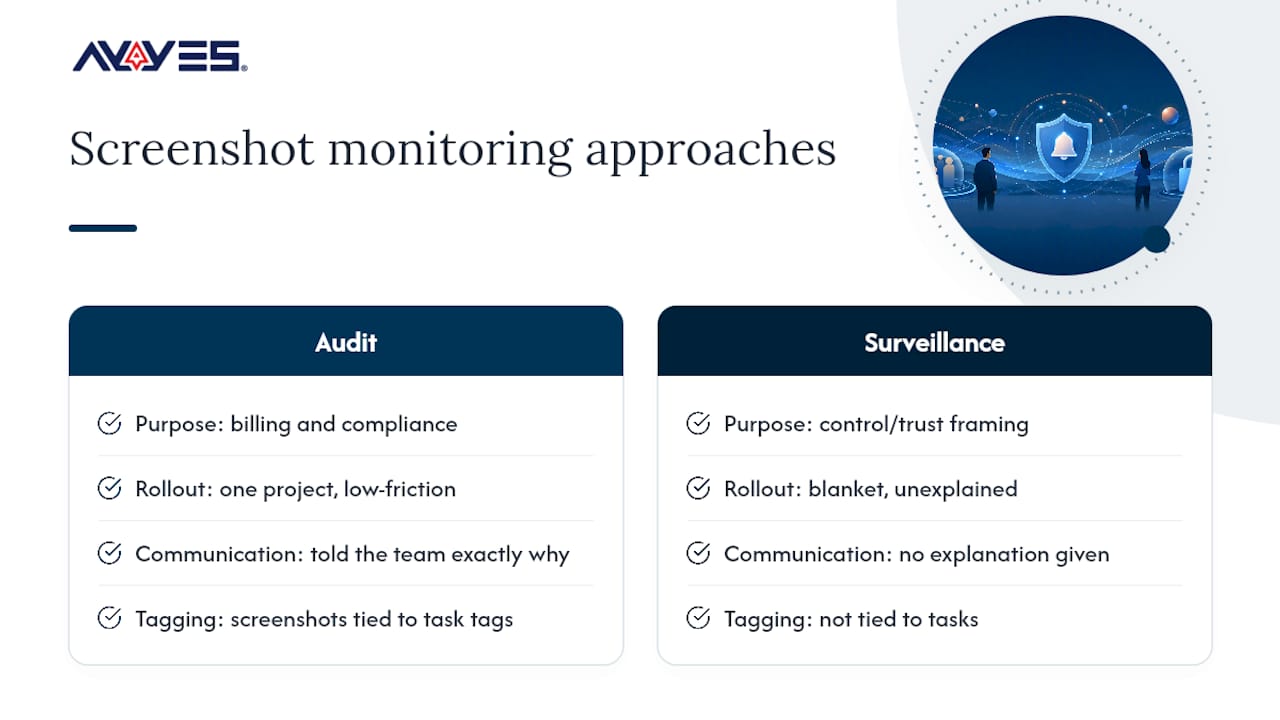
Most managers treat screenshot notifications as a surveillance dial: turn it up for more control, down for more trust. That framing misses the point. The teams that get the most value from screenshot alerts are the ones that treat them as audit evidence for billing and compliance, not as a behavioral leash.
I’ve seen the low-friction version work: a team lead rolls out capture on one project, tells the team exactly why (client billing disputes had become common), and ties every screenshot to a task tag. Complaints drop because the purpose is visible. Blanket, unexplained monitoring produces the opposite result almost every time.
— Mark
See How AYYES Handles Screenshot Notifications for You
Configuring blur settings, tagging screenshots to projects, and routing alerts to the right people takes real setup time if you’re building it from spreadsheets and manual review. AYYES handles that configuration natively: adjustable capture frequency, built-in blur and redaction, automatic project tagging, and reporting integrations that turn raw captures into billing-ready summaries instead of an image dump.
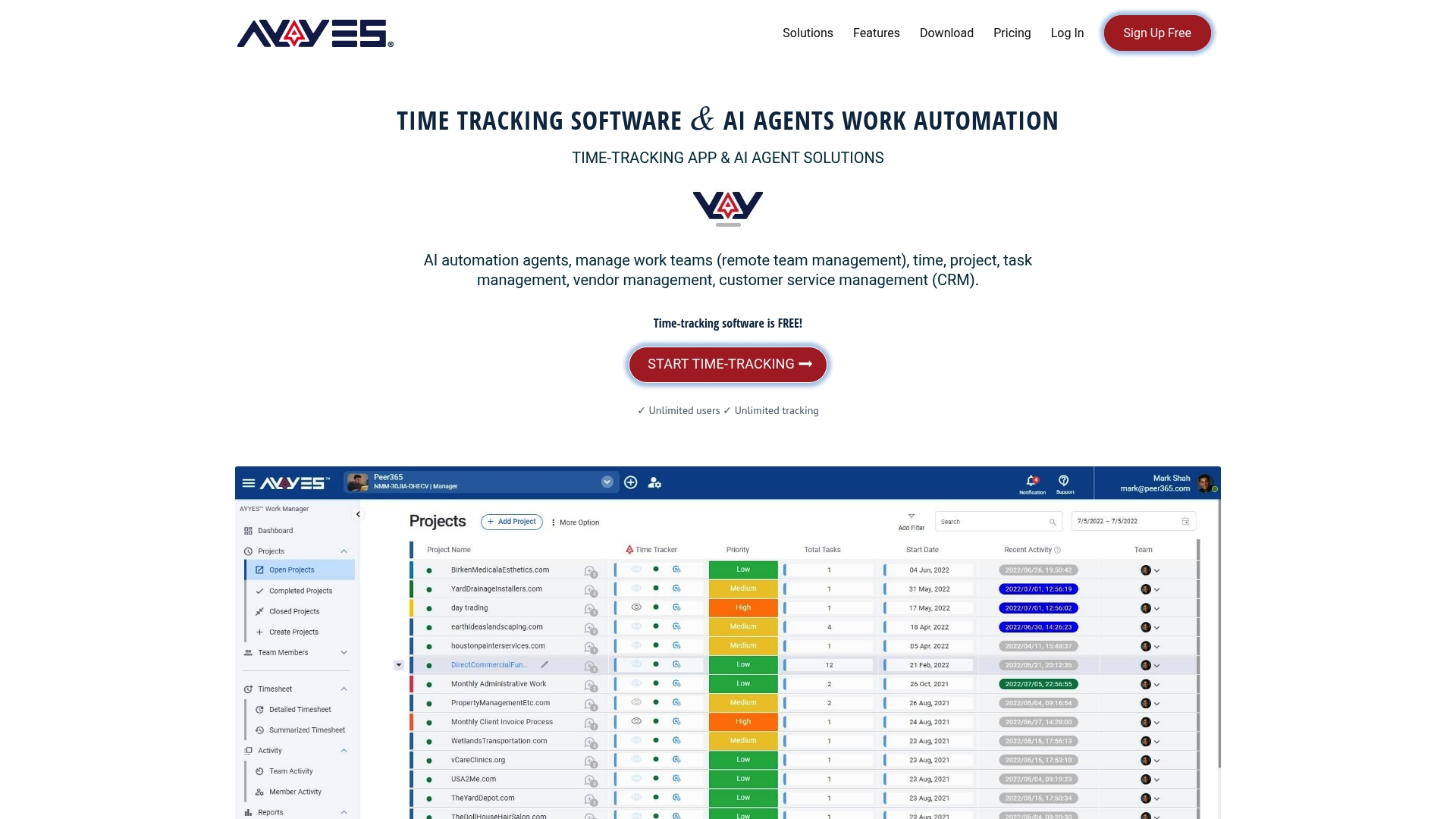
The platform’s AI automations link every screenshot to its time entry and task automatically, which is exactly what the tagging and audit-bundle steps above require. Instead of building the checklist manually, you configure it once and let the system apply it to every tracked session. If you’re ready to see how conservative defaults, blur, and reporting come together in one place, check the AYYES time tracking platform and start a trial with your own team’s settings.
