
Contractor Time Tracking: Software, Templates, and Best Practices
Contractor time tracking is the process of recording hours by client, project, task, or job site so a contractor can bill accurately, control labor costs, and document completed work. A reliable system connects each time entry to the work performed, routes it for review, and turns approved hours into useful timesheets, reports, payroll data, or invoices.
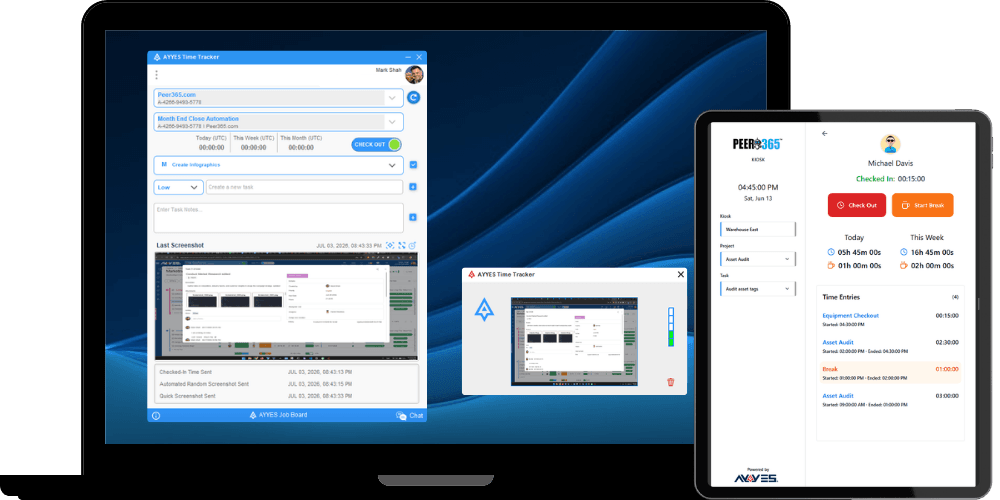
A spreadsheet can work for one contractor with a small number of projects, but growing teams usually need dedicated contractor time tracking software. A platform such as AYYES gives contractors web timers, automatic and manual entry, offline tracking, project and task records, timesheets, reports, and a shared-device kiosk in one connected workflow.
Contractor Time Tracking at a Glance
- Connect every hour to a project and task. A timestamp without job context cannot explain a client invoice or reveal which phase consumed the labor budget. Require a project, task, cost code, and short work note for every entry.
- Choose the capture method that matches the work. A one-click timer suits desk work, while a kiosk, mobile browser, manual entry, or offline desktop tracker may fit crews and remote sites better. The best system lets each contractor use the simplest approved method.
- Review hours before they reach billing or payroll. A consistent approval step catches missing notes, duplicate entries, unusual overtime, and incorrect project assignments while the work is still fresh. Waiting until month-end makes corrections slower and disputes harder to resolve.
- Use actual hours to improve future bids. Comparing estimated labor with approved time by project phase shows where margins were won or lost. Those records help contractors create more realistic schedules, rates, and proposals for similar work.
- Keep monitoring proportionate and transparent. Contractors should understand what data is collected, why it is needed, who can see it, and how long it is retained. Use location, activity, or screenshot evidence only when it solves a defined business need and complies with applicable rules.
Table of Contents
- What Is Contractor Time Tracking?
- Why Contractors Need Time Tracking
- Contractor Time Tracking Methods Compared
- Contractor Time Tracking Template
- Construction Contractor Time Tracking
- How to Track Contractor Hours Step by Step
- How to Choose Contractor Time Tracking Software
- How AYYES Helps Contractors Track Time
- Common Contractor Time Tracking Mistakes
- Frequently Asked Questions
What Is Contractor Time Tracking?
Contractor time tracking records when work happened, how long it took, which client or project received the work, and whether the time is billable. Good records also preserve a short description, the person who performed the work, the billing rate or labor cost, and any review or approval history.
The same process can support an independent contractor working alone, a professional-services firm managing specialists, or a construction business coordinating subcontractors across job sites. The setup changes with the work, but the goal stays the same: create a trustworthy line from hours worked to project cost and payment.
Contractors, subcontractors, and employees
A time tracking tool does not decide whether a worker is legally an employee or an independent contractor. Classification depends on the real working relationship, and the U.S. Department of Labor continues to update federal guidance, while state rules may impose different tests.
Configure the system around contracts, deliverables, client billing, and necessary project controls instead of assuming that detailed monitoring proves a worker’s status. Businesses with classification questions should obtain advice for their jurisdiction and specific working arrangement.
Why Contractors Need Time Tracking
Accurate billing and faster payment
Tracking time as work happens reduces forgotten billable minutes and produces itemized records that clients can understand. When hours, tasks, rates, and notes live together, a contractor can prepare a defensible invoice without rebuilding the week from memory.
Better project and labor-cost control
Project totals show whether labor is consuming the budget faster than planned and which phase is creating the variance. Managers can respond during the job by adjusting scope, staffing, or priorities instead of discovering the overrun after delivery.
Smarter estimates and future bids
Historical time by task or cost code turns completed work into an estimating library. Comparing actual hours with the original bid helps a contractor price similar jobs more profitably and set schedules that reflect real production rates.
Cleaner records for clients, accounting, and tax support
Time records are most useful when they align with contracts, invoices, receipts, and payment records. The IRS recordkeeping guidance explains that businesses may choose a suitable system but must keep records that clearly support income and expenses.
Contractor Time Tracking Methods Compared
No single capture method is best for every contractor. Select the least complicated method that still provides the project detail, review controls, and reporting your contracts require.
| Method | Best for | Advantages | Limitations |
|---|---|---|---|
| Excel or spreadsheet template | Solo contractors and short projects | Familiar, flexible, and inexpensive | Manual totals, version conflicts, and weak approval history |
| Web or mobile timer | Consultants, freelancers, and mobile professionals | Fast start and stop with project assignment | Users may forget to switch tasks or stop a session |
| Automatic desktop tracker | Remote, creative, technical, and computer-based work | Reduces memory-based entry and can add work context | Requires a clear privacy policy and sensible settings |
| Kiosk or shared time clock | Construction crews, workshops, warehouses, and shifts | Quick check-in from one device with consistent project routing | Needs a well-placed device and a backup process |
| Manual time entry in software | Field work, corrections, and fixed daily routines | Flexible when a timer is impractical | More dependent on memory and timely review |
Contractor Time Tracking Template
A contractor time tracking template is a practical starting point when one person needs to document hours without a full software rollout. Build it so every row can answer who worked, when the work occurred, what project received it, what was completed, and how the amount was calculated.
Fields to include in a contractor timesheet template
| Field | Purpose |
|---|---|
| Contractor name or ID | Identifies the person or business submitting the record |
| Client, project, and cost code | Connects hours to the correct contract and project phase |
| Date, start time, end time, and break | Shows when work occurred and calculates net hours |
| Task or deliverable note | Explains what was completed during the recorded period |
| Billable status and rate | Separates chargeable work and calculates the invoice value |
| Expenses or materials reference | Links approved costs without mixing them into labor hours |
| Contractor attestation and approver | Documents submission, review, corrections, and sign-off |
Contractor time tracking in Excel
For a basic contractor time tracking Excel sheet, calculate net hours as end time minus start time minus unpaid breaks, then multiply approved billable hours by the agreed rate. Lock formula cells, use drop-down lists for projects and cost codes, and keep one controlled master file so conflicting versions do not circulate.
A contractor timesheet template Excel file becomes harder to manage when several people edit it, projects use different rates, or managers need an audit trail. That is the point to move from a template to software with permissions, centralized timesheets, automatic totals, and exports.
Construction Contractor Time Tracking
Construction contractor time tracking must work in real job-site conditions, including poor connectivity, gloves, shared devices, changing crews, multiple locations, and fast task switches. The field workflow should be quicker than a paper card while still assigning every hour to the correct project and phase.
- Assign hours at the job or cost-code level. Record site preparation, framing, electrical, finishing, travel, and rework separately when those distinctions affect budgets or invoices. This gives estimators usable production history instead of one undifferentiated block of labor.
- Provide a kiosk or supervisor-assisted option. A shared device at the gate or site office helps crews clock in without installing software on personal phones. Keep a documented backup for device failure, forgotten credentials, or workers who cannot access the kiosk.
- Support offline capture where connectivity is unreliable. A tracker should continue recording approved work when the internet drops and sync it when the device reconnects. Test this behavior before rollout because a label that says “offline” is not enough if project selection or notes fail.
- Use location features only for a defined purpose. GPS or geofencing can help verify an authorized job site, but it should not become continuous off-duty surveillance. Explain the scope, obtain any required consent, restrict access, and confirm the rules that apply in each jurisdiction.
- Separate labor time from expenses and materials. Hours, mileage, equipment, and reimbursable purchases may belong on the same job but need different fields and approval rules. Keeping them distinct produces cleaner job-cost reports and prevents invoice calculations from becoming opaque.
How to Track Contractor Hours Step by Step
- Define the billing model and recordkeeping rules. Document whether the contract uses hourly rates, time and materials, fixed fees, milestones, or a hybrid structure. State which activities are billable, how breaks and travel are handled, and when entries are due.
- Create clients, projects, tasks, and cost codes. Match the structure to the way work is estimated, managed, and invoiced so reporting stays consistent. Keep the list short enough that a contractor can choose the right code without guessing.
- Select the approved capture methods. Offer a web timer or desktop tracker for computer work and a kiosk, mobile browser, offline tracker, or manual entry for field work. Give every user one primary method and one clearly documented backup.
- Require useful context with each entry. A short note such as “installed level-two conduit” or “revised client onboarding workflow” makes the record easier to review. Avoid vague labels such as “work” or “general tasks” because they do not support billing or estimating.
- Review and approve on a fixed cadence. Supervisors should check project assignment, notes, breaks, duplicates, unusual duration, and contract limits before hours reach finance. Daily review suits fast-moving crews, while weekly review is often enough for professional services.
- Export, invoice, and learn from the data. Reconcile approved totals with payroll or invoices, then compare actual hours with the project budget and estimate. Feed the variance back into staffing plans, task standards, rates, and future bids.
How to Choose Contractor Time Tracking Software
The best contractor time tracking software is not the product with the longest feature list. It is the one contractors will actually use and managers can review without rebuilding the data in another system.
- Multiple entry options. Look for a timer, automatic capture, manual entry, and a field-friendly method so one rigid workflow does not block adoption. Confirm that all approved methods feed the same timesheet and project reports.
- Projects, tasks, rates, and budgets. The system should show where time went and what that time cost, not merely when someone clocked in. Project and task reporting should support billing, job costing, and estimate-versus-actual analysis.
- Approvals and edit history. Managers need a clear way to review, correct, reject, and approve entries before payment or invoicing. Changes should remain understandable so the business can explain who edited a record and why.
- Mobile, kiosk, and offline access. Test the real field workflow on the devices and connections contractors use rather than relying on a marketing checklist. Clock-in, project selection, notes, breaks, and synchronization should all be simple under job-site conditions.
- Useful exports and client-ready reports. Confirm that timesheets can be grouped by contractor, client, project, task, and date, then exported in the formats accounting needs. A clean PDF helps client review, while Excel data supports custom analysis and reconciliation.
- Privacy and permission controls. Collect only the evidence required for the work and limit access by role, project, or responsibility. If screenshots, application activity, or location data are enabled, publish a clear policy and configure the least intrusive settings that meet the need.
- Transparent total cost. Compare the free plan, paid seats, storage, reporting, kiosks, and premium controls instead of evaluating only the advertised starting price. A free time tracking app may be excellent for one person but become expensive or restrictive as approvals and crews expand.
How AYYES Helps Contractors Track Time
AYYES brings contractor hours, projects, tasks, timesheets, reports, and field or desktop capture into one work-management system. Contractors can start with a one-click web timer, add time manually, or use the automated desktop tracker when computer-based work requires low-friction capture.
| Contractor need | AYYES capability | Business result |
|---|---|---|
| Project and task time | Timers and entries assigned to projects and tasks | Cleaner billing and estimate-versus-actual analysis |
| Field crew clock-in | Kiosk with project assignment, PIN, QR, and break tracking | One shared job-site workflow that feeds the same timesheets |
| Remote or computer-based work | Desktop tracking, offline support, work notes, and optional activity evidence | More complete records with configurable context |
| Manager and client reporting | Detailed and summarized timesheets with PDF and Excel downloads | Faster review, reconciliation, and client-ready documentation |
| Labor cost and project control | Rates, billable hours, project budgets, and exportable reports | Earlier visibility into margin and budget variance |
Web timer, manual entry, or automatic tracking
Contractors can use the AYYES time tracking app to select a project and task, run a timer, or add missing time manually. The desktop app can continue tracking offline and synchronize data after the connection returns, which helps remote workers and sites with unreliable internet.
Kiosk time tracking for construction and on-site teams
The AYYES Kiosk turns a shared tablet or browser-enabled device into a project-linked clock. Team members can check in with a PIN or QR code, record breaks, and send sessions into the same timesheet used for web and desktop tracking.
Timesheets and reports that support billing
Detailed timesheets show work sessions, duration, active time, and available activity context, while summarized views consolidate totals by project. PDF and Excel downloads give managers a polished review format and raw data for payroll, billing, accounting, or custom analysis.
Try the workflow with one contractor or crew first. Create the projects and tasks, choose the capture method, run one full approval and export cycle, then adjust the setup before expanding it. Start with AYYES free and test the process on real work.
Common Contractor Time Tracking Mistakes
- Tracking hours without project detail. A total such as “eight hours” may support attendance but cannot explain the work or reveal which phase exceeded budget. Make client, project, task, and a short note mandatory where the contract requires that context.
- Waiting until the end of the month. Delayed entry increases forgotten work, rounded estimates, and incorrect task assignments. Ask contractors to submit daily or weekly and review exceptions while supervisors still remember the job.
- Using Excel after the workflow has outgrown it. Spreadsheets become fragile when many people, rates, approvers, and versions are involved. Move to centralized software when version control and manual reconciliation take more time than the tool saves.
- Choosing software only because it is free. A time tracking app free plan may cover timers but omit approvals, job costing, kiosks, or the export format the business needs. Calculate the total workflow cost, including administrative time and corrections, before deciding.
- Collecting more monitoring data than necessary. Excessive screenshots, activity, or location tracking can damage trust and create privacy risk without improving the invoice. Define the purpose first, communicate it clearly, and use the minimum evidence needed.
- Skipping the approval-to-payment connection. Even accurate time data creates extra work when someone must retype it into payroll or invoices. Validate exports, lock the approved period, and reconcile totals before money moves.
Frequently Asked Questions
What is contractor time tracking?
Contractor time tracking records hours by contractor, client, project, task, and date so the work can be reviewed and billed accurately. A complete record also includes notes, billable status, rates or labor costs, and approval information.
What should a contractor time tracking template include?
A useful template includes the contractor name, client, project, task or cost code, date, start and end times, breaks, total hours, work description, billable status, rate, and approval. Add expense references separately so labor and reimbursable costs remain easy to audit.
Can I use a contractor timesheet template in Excel?
Yes, Excel is suitable for a solo contractor, a small number of projects, or a short pilot when the file has protected formulas and consistent fields. Software becomes safer when several people submit hours, rates vary, approvals matter, or the business needs a reliable edit history.
What is the best construction contractor time tracking method?
Construction teams usually need a combination of a shared kiosk or mobile clock, project and cost codes, break tracking, offline support, and timely supervisor review. The best method is the one crews can complete quickly at the job site and managers can connect to job costing without re-entry.
Is there a time tracking app free for contractors?
Yes, several products offer free plans, including AYYES and well-known alternatives such as Clockify, but their limits and included features differ. Compare users, projects, exports, kiosks, approvals, offline access, billable rates, and reporting before selecting a free contractor time tracker.
Is Clockify the best contractor time tracking software?
Clockify is a popular option for basic timers and timesheets, but no single product is best for every contractor workflow. A construction crew may prioritize kiosks and field access, while a consultant may value billable reports, task timers, privacy controls, and client-ready exports.
Can a contractor time tracker be used as a time tracking app for personal use?
Yes, an individual can track personal projects, learning, administrative work, or non-billable time to understand where the day goes. Keep personal and client work in separate projects so reports, invoices, and private records do not become mixed.
How often should contractors submit timesheets?
Daily submission works well for changing job sites, shifts, or crews, while weekly submission is often sufficient for consulting and project-based desk work. Choose a cadence that preserves accurate memory and gives managers time to approve hours before payroll or invoicing deadlines.
Should contractor time tracking include screenshots or activity data?
Only when the evidence serves a legitimate and communicated business purpose, such as validating certain remote billable work or reconstructing task context. Configure access, retention, and blur controls carefully, and do not treat a single activity metric as proof of performance or legal status.
Does contractor time tracking replace invoices or contracts?
No, time records support an invoice or contract but do not replace the commercial terms, deliverable acceptance, expense documents, or payment history. Keep approved timesheets with the related contract, invoice, receipts, change orders, and proof of payment.
How does AYYES support contractor and subcontractor time tracking?
AYYES records time by project and task through web timers, manual entry, desktop tracking, and a shared-device kiosk, then organizes the data in detailed or summarized timesheets. Reports, PDF and Excel exports, rates, budgets, billable hours, and work context help managers move from recorded time to review, billing, and project analysis.
Start Contractor Time Tracking with AYYES
Replace disconnected paper cards and spreadsheet versions with one contractor workflow for projects, tasks, timers, kiosk sessions, offline tracking, timesheets, reports, and cost visibility. Create a free AYYES account, set up one active project, and test the complete track, review, and export cycle before your next billing period.