
Managers: Stop Late Timesheets in 4 Weeks With Time Tracking Reminders
The most reliable fix for late or missing timesheets is automated, configurable reminders: a daily personal nudge tuned to each person’s workflow, backed by a weekly team reminder aligned to your payroll cutoff. This combination catches individual habits early and enforces a hard deadline before payroll runs. The sections below cover the exact setup steps, message templates, and scheduling rules that make it work.
TL;DR:
- Daily personal reminders should be set five minutes before typical log-off times to catch workers while their tasks are still fresh.
- Reminder messages should progressively shift from friendly pre-deadline nudges to firm deadline alerts and rare escalation check-ins.
- Use thresholds such as untracked hours or missed days to trigger reminders, rather than fixed times, to reduce unnecessary alerts.
- Combining idle detection, manual edit features, and direct links to timesheets greatly improves submission accuracy and compliance.
- Stagger notifications across channels and limit frequency to prevent alert fatigue and maintain reminder effectiveness.
Table of Contents
- How to Set Up Time Tracking Reminders Step by Step
- What Should a Timesheet Reminder Message Say?
- Scheduling Reminders Across Time Zones and Thresholds
- Which Reminder Features Actually Prevent Payroll Errors?
- How Do You Stop Reminders From Being Ignored?
- How Do You Know if Your Reminders Are Actually Working?
- A Four-Week Rollout Plan That Doesn’t Overwhelm Your Team
- Get Reminder Setup Right With AYYES
- Sources
- FAQ
How to Set Up Time Tracking Reminders Step by Step
Most platforms bury reminder settings under admin or workspace preferences, not the main dashboard, so start there. Harvest, for example, splits reminders into two layers: admins configure recurring team reminders, while individuals turn on personal daily nudges independent of what the admin sets. That dual structure is worth replicating in whatever tool you use.
- Find the reminder panel. Look under account or admin settings, usually labeled “notifications,” “reminders,” or “timesheet alerts.”
- Define the trigger. Decide whether the reminder fires on an unsubmitted timesheet, a percentage of untracked hours (say, under 80% of expected hours logged), or a missed daily entry.
- Pick cadence and recipients. Choose daily nudges for individuals and a weekly or biweekly reminder for full teams, then select who receives each type.
- Send a test. Trigger a sample reminder to yourself or a test account to confirm timing, wording, and delivery channel work as expected.
- Preview, save, and roll out. Check the final message against a live timesheet view before activating it for the full team.
Individuals contributing their own time should mirror this same logic on a personal scale: set a daily reminder five minutes before you typically log off, so the prompt catches you while the day’s work is still fresh.
What Should a Timesheet Reminder Message Say?
The wording matters almost as much as the timing. A reminder that reads like a warning gets ignored or resented; one that reads like a quick nudge gets acted on. Build three tiers.
- Friendly, pre-deadline (sent 1 day before submission is due): “Hi [Name], just a heads up that this week’s timesheet is due tomorrow at [time]. You’re currently missing entries for [day/days]. Takes about 2 minutes to update.”
- Firm, deadline-day (sent morning of the cutoff): “Reminder: today is the deadline to submit your timesheet for payroll processing. Please log any remaining hours by [time] to avoid a delay in your pay cycle.”
- Escalation, repeat misses (sent after 2+ consecutive late or missed submissions): “This is the second reminder this month regarding late timesheet submission. Please submit outstanding hours today. If you’re running into a recurring issue with tracking your time, reply to this message so we can help.”
Keep the escalation tier rare and specific. It should read as a genuine check-in, not a form letter, since overusing it trains people to tune out every reminder that follows.
Scheduling Reminders Across Time Zones and Thresholds
Cadence and timing decide whether a reminder gets read or buried. Daily reminders work best for individuals who track hours against specific tasks or clients, where a missed day compounds fast. Weekly reminders suit teams on a fixed payroll cycle, where the real deadline is the cutoff, not any single day.
- Match cadence to the actual deadline. Freelancers billing hourly need daily prompts; salaried teams on biweekly payroll usually need one solid reminder two days before submission closes.
- Send in the recipient’s local time, not the admin’s. Wrike’s reminder settings let admins schedule by each recipient’s timezone, which avoids a 6 a.m. ping landing on someone three time zones away.
- Trigger on a threshold, not a fixed clock. Setting the reminder to fire only when logged hours fall under a set percentage, or when no entry exists for the day, cuts unnecessary alerts to people who are already on track.
- Exclude anyone who already submitted. A reminder sent to someone who finished their timesheet an hour earlier reads as sloppy automation, and it erodes trust in every future alert.
Which Reminder Features Actually Prevent Payroll Errors?
Not every notification feature earns its place. Reviews of leading time-tracking apps point to a consistent short list of features that separate a useful reminder system from a noisy one, centered on idle detection, manual edits, and calendar sync.
- Idle detection with a correction prompt. The tool flags inactive time and asks the person to confirm or adjust it, rather than silently logging idle minutes as billable hours.
- Editable entries after the fact. People forget to start a timer or step away mid task; the system needs an easy way to add or correct entries without contacting an admin.
- A direct link from the reminder to the timesheet. A reminder that requires three clicks to reach the actual entry screen loses people at the second click.
- Reporting and audit logs. Managers need a record of who was reminded, when, and whether they acted, so repeat problems surface in a report instead of getting lost in an inbox.
Auto-tracking tools and browser or calendar integrations that log activity passively reduce how often a reminder is even necessary, since the system fills in gaps before a nudge has to.
How Do You Stop Reminders From Being Ignored?
Notification fatigue is the single most common reason reminder systems stop working. Sending the same person a Slack message, an email, and an app notification within the same hour trains them to ignore all three. Group and individual reminders should be staggered by at least a few hours, not fired simultaneously. Rotating channels also helps: an email for the first nudge, a Slack or SMS message for the deadline-day reminder, keeps each one feeling distinct rather than repetitive. Reserve the firm or escalation tone for genuine repeat misses, and use submission data to tune frequency down for people who consistently comply on the first prompt. 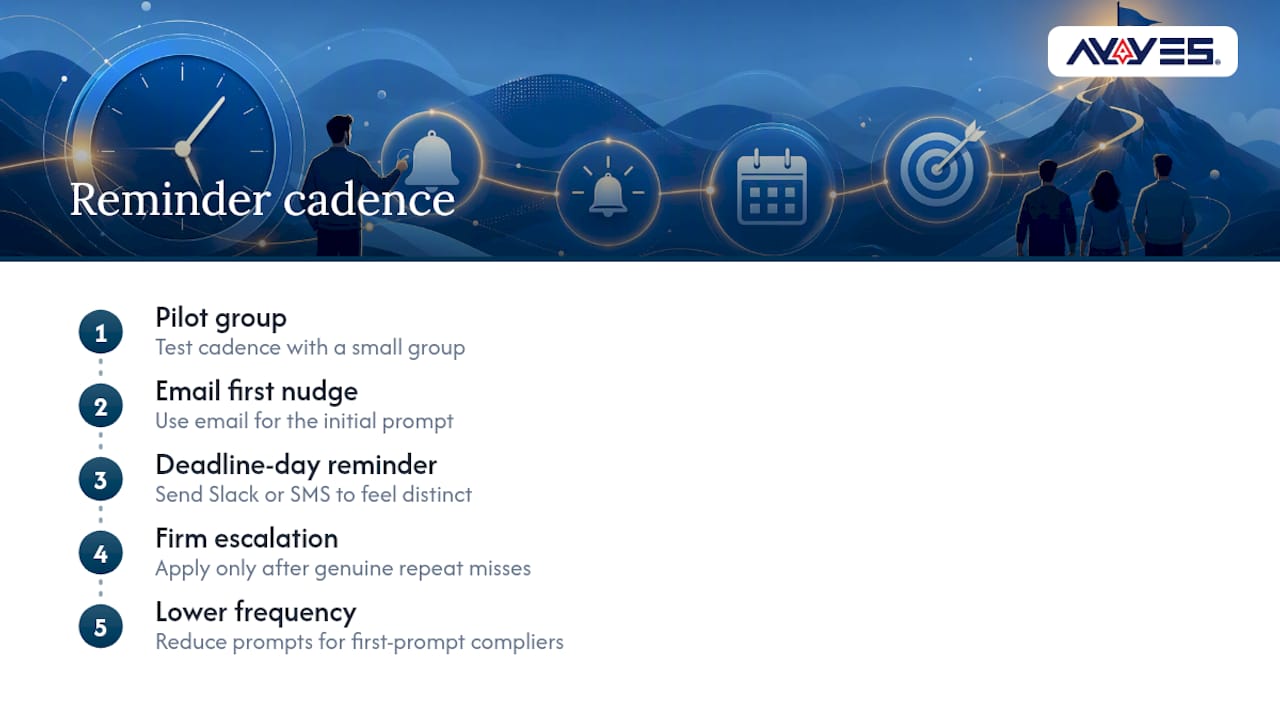 Pro Tip: Pilot any new reminder cadence with a small group first. Notification fatigue shows up fast in completion data, and it’s far easier to adjust before you’ve rolled the same settings out to eighty people.
How Do You Know if Your Reminders Are Actually Working?
Three numbers tell you whether the setup is doing its job: the completion rate before payroll locks, the count of late submissions per cycle, and how often managers have to request manual corrections after the fact. A drop in any of these after you change reminder settings is a real signal; if none move, the wording or timing needs another pass.
- Track completion rate for the 24 hours before your payroll deadline, not just the final tally.
- Run a two to four week pilot on any new cadence or template, comparing late-submission counts against the prior period.
- Use reporting to flag repeat offenders, since a pattern often points to a training gap or a workflow mismatch rather than carelessness.
Accurate timesheets aren’t just an internal metric. The Department of Labor requires employers to maintain reliable records of hours worked, and some states go further. California’s Labor Code Section 226 sets specific wage statement and recordkeeping obligations, which makes a working reminder system a compliance tool as much as a productivity one.
A Four-Week Rollout Plan That Doesn’t Overwhelm Your Team
Rolling out every rule at once is how most reminder systems collapse in week two. A staged approach works better. In week one, pilot the cadence and templates with one small team and watch send times closely. Week two expands to a second group while you start logging submission metrics against the pilot’s baseline. Week three is for adjustment: tighten thresholds, rewrite any message that got ignored, and drop channels that underperformed. Week four is full rollout, paired with a standing quarterly audit so the settings that worked in March don’t quietly go stale by fall.
— Mark
How AYYES Helps Reduce Missed Timesheets
AYYES helps teams keep time records more consistent by combining time tracking, idle detection, editable entries, timesheets, and reporting in one workspace. This can reduce the amount of manual follow-up managers need when employees forget to log hours or submit incomplete records. Pasted text Key Features:
- Automatic and manual time tracking
- Idle-time detection
- Editable time entries
- Timesheets
- Project and task tracking
- Reporting and activity records
- Screenshot monitoring on paid plans
- App and website activity tracking on paid plans
Best For: Remote teams, small businesses, agencies, project-based teams, managers reviewing employee hours Pricing: AYYES offers a free plan for up to 12 team members at $0. Paid plans cost $0.99 per seat/month or $0.88 per seat/month when billed annually. Screenshot tracking and app and website monitoring are available on paid plans.
Get Reminder Setup Right With AYYES
If you’re ready to put this playbook into practice without stitching together separate tools for reminders, idle detection, and reporting, some platforms build all three into one system. Configurable reminder rules let admins set thresholds, choose recipients, and control cadence exactly as described above, while individuals can layer on personal nudges without waiting on IT. 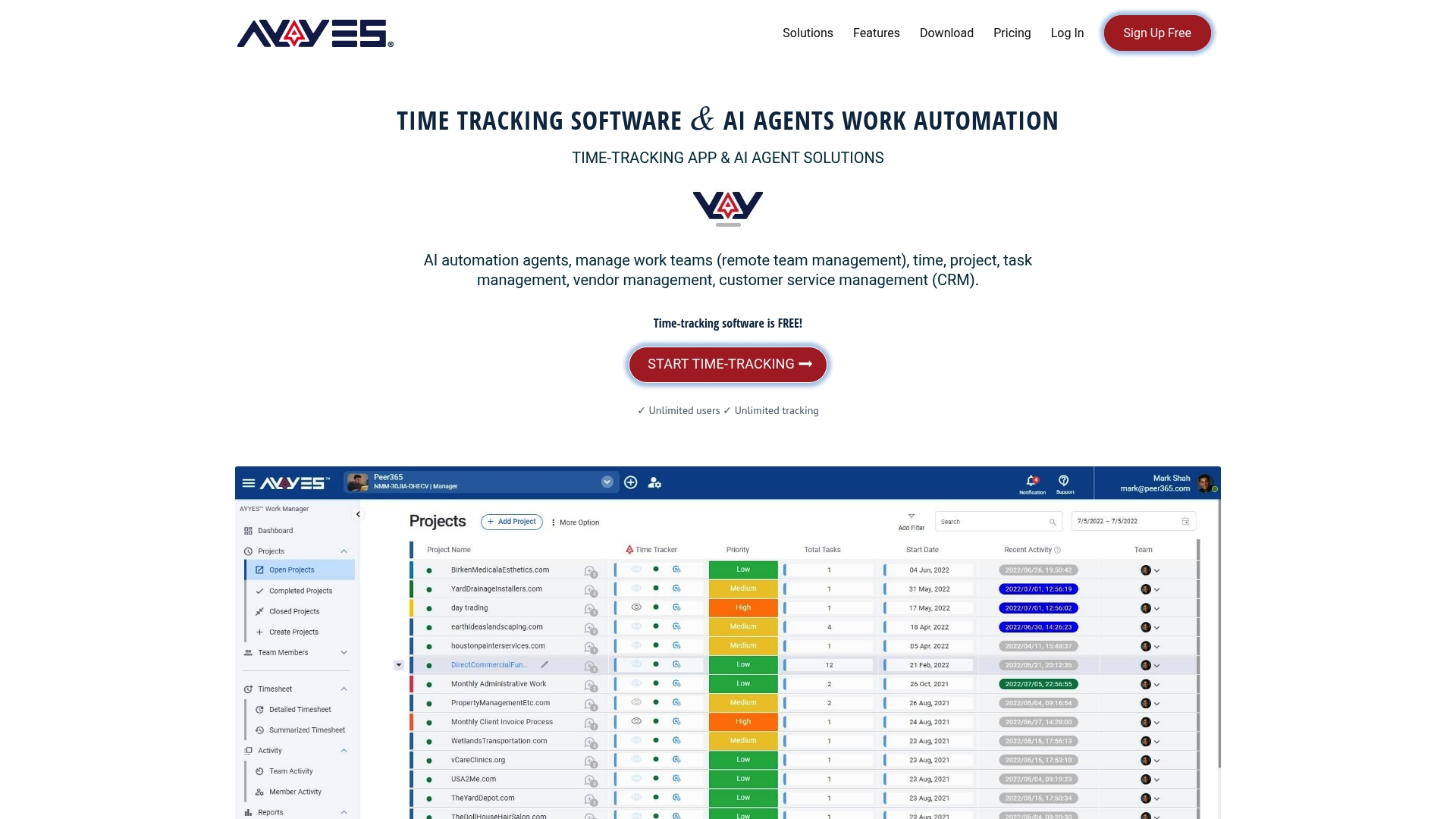 Idle detection that flags inactive stretches for review instead of logging them silently, and editable entries after the fact so a missed clock-in doesn’t turn into a payroll dispute, are useful features to look for in a time tracking system. Submission and audit reports that surface repeat late-comers automatically can turn manual tracking into an automated process in some systems. Visit the AYYES time-tracking platform to set up your first reminder rule and run a pilot with your own team this week.
Sources
This guide draws on federal and state recordkeeping requirements from the Department of Labor and California’s Labor Code, along with product help documentation from Harvest and Wrike, and a feature roundup from Zapier.
- Wage and Hour Division (WHD) — Recordkeeping Requirements under the FLSA
- California Legislative Information — Labor Code Section 226
- Zapier — Best time-tracking apps (2026)
- Timesheet reminders – Harvest Help Center
- Timesheet Reminders – Wrike Help Center
FAQ
What Is the Best Time Tracking Tool?
There’s no single best tool for every team, but the strongest options combine real-time timers, idle detection, calendar integrations, and configurable reminders, a feature set Zapier’s roundup identifies as the consistent standard. Some platforms build these features into one system alongside screenshot reporting for teams that need accountability on top of accuracy.
What Is the Best Way to Keep Track of Time?
The most reliable approach pairs a timer or auto-tracking tool with a daily personal reminder, so entries get logged the same day rather than reconstructed from memory later. Adding a weekly admin-level reminder tied to your payroll cutoff catches anything the daily nudge missed.
How Do You Automate Time Tracking?
Automation works best in layers: idle detection flags inactive time, auto-tracking tools log app or calendar activity passively, and scheduled reminders prompt people to review and confirm what the system captured. None of these fully replace manual review, but together they cut the amount of manual entry down to corrections rather than full logging.
Does Microsoft Have a Time Tracking Tool?
Microsoft doesn’t offer a dedicated standalone time tracking product, though users often track hours through Outlook calendar entries or third-party add-ins connected to Teams. Dedicated platforms typically offer more built-in reminder and reporting features than a calendar-based workaround.
How Often Should Timesheet Reminders Be Sent
Daily reminders suit individuals tracking hours against specific tasks, while weekly reminders aligned to the payroll cutoff work better for full teams. Sending more than one reminder per channel per day risks notification fatigue and lowers response rates over time.