
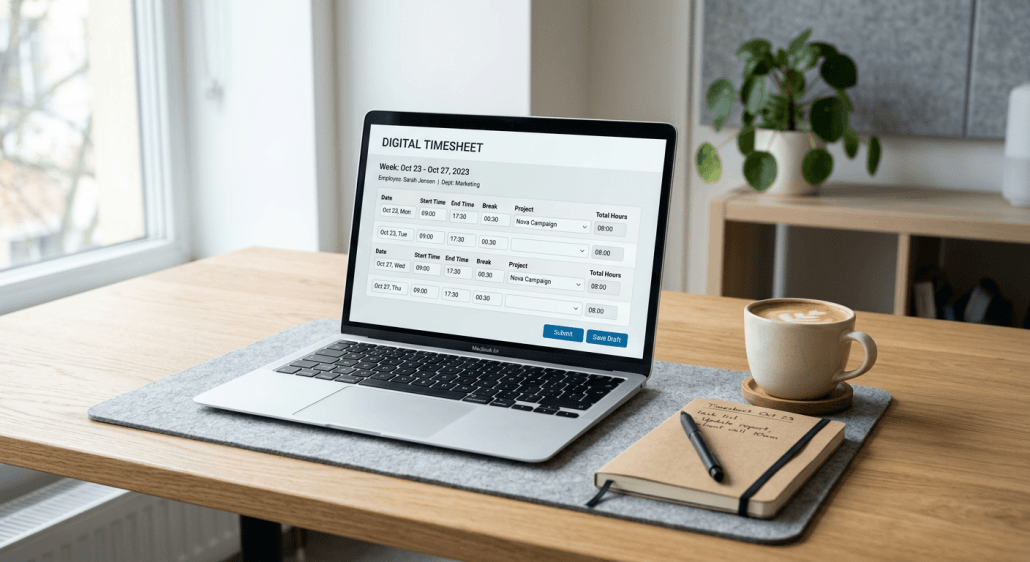
How to Use a Time Calculator With Lunch Break for Accurate Payroll
Accurate timekeeping is the foundation of fair compensation and regulatory compliance. Whether you are a business owner managing a small team or a freelancer billing by the hour, manually tracking time often leads to calculation errors that affect payroll integrity. Using a standardized, structured approach to track start times, end times, and unpaid intervals ensures that your records remain audit-ready and that your team is paid exactly what they have earned.
Quick Summary
A time calculator with lunch break allows for the precise subtraction of unpaid intervals from a total shift duration. By automating the math between clock-in and clock-out times, users can eliminate manual errors, ensure compliance with labor laws regarding breaks, and maintain accurate payroll records for hourly employees.
- Subtracts unpaid meal breaks from total duration automatically.
- Standardizes time entry to prevent rounding or arithmetic errors.
- Ensures accurate representation of net work hours.
Table of Contents
- The Importance of Accurate Time Logging
- Calculating Time Intervals Manually vs. Digitally
- How to Use a Time Card Calculator Hours and Minutes
- Best Practices for Managing Breaks and Overtime
- Common Pitfalls and Troubleshooting
- FAQ
- Recommended Reads
The Importance of Accurate Time Logging
Maintaining a precise record of work hours is not merely an administrative task; it is a legal requirement in most jurisdictions. When employers fail to accurately account for unpaid breaks, they risk wage-and-hour litigation and compliance issues with local labor boards. Using a reliable time tracking software ensures that every minute is accounted for, providing a verifiable audit trail for both the employer and the employee. Furthermore, accurate data allows for better project costing and profitability analysis. By distinguishing between active working time and non-billable lunch breaks, managers can see exactly where labor costs are concentrated. This granular level of detail is essential for agencies and firms that rely on projects to drive their business model, as it prevents the under-billing of services and ensures that profit margins are protected.
Calculating Time Intervals Manually vs. Digitally
Calculating time manually often involves converting hours and minutes into decimal format, which is where most mistakes occur. For instance, 30 minutes must be converted to 0.5 hours before it can be added to an hourly rate. A time tracker calculator removes this step by automatically handling the conversion and the subtraction of the lunch break, allowing for a seamless transition from raw time data to final payroll input. When you calculate time interval segments, you need to be aware of the difference between total duration and net duration. Total duration includes every second the employee is on the clock, while net duration isolates the actual time spent on tasks. Digital solutions provide the transparency needed to justify payroll amounts to employees, reducing the ambiguity that often arises with manual paper-based logs.
How to Use a Time Card Calculator Hours and Minutes
- Input the start time and the clock-out time in the 12-hour or 24-hour format specified by the tool.
- Identify the duration of the unpaid lunch break, typically expressed as a set number of minutes or as a specific start-and-stop interval.
- Verify the date range if the calculator is intended for weekly or bi-weekly pay periods.
- Review the result to ensure the net hours match expectations for that specific shift.
- Export or record the resulting net hours in your payroll system to finalize the entry.
Pro Tip: Always record time at the moment of occurrence. Relying on memory at the end of the week to calculate lunch breaks leads to “rounding bias,” where employees or managers subconsciously favor numbers that make the total shift length look cleaner, such as rounding 37 minutes to 45 or 30.
Best Practices for Managing Breaks and Overtime
Managing overtime effectively requires a clear distinction between standard hours and extra hours. When using a work time calculator with breaks, ensure that the system is configured to flag any hours worked beyond the daily or weekly threshold. This proactive approach helps in calculating the correct overtime premium, which is often 1.5 times the base rate depending on local labor laws. Standardizing how breaks are taken is equally important. If a workplace requires a 30-minute unpaid lunch break, the system should ideally force a clock-out during that window to maintain a consistent record. Using an ontheclock time duration calculator alongside a clock-in kiosk can provide an additional layer of verification, ensuring that the time recorded is physically associated with the site location or the device assigned to that worker.
Common Pitfalls and Troubleshooting
One common error occurs when users fail to account for transitions between morning and afternoon (AM/PM). If a user inputs a shift starting at 9:00 AM and ending at 5:00 PM, but mistakenly enters 5:00 AM, the calculator will return an error or a negative value. Always double-check time formats when using a time card calculator in minutes to ensure the software recognizes the shift sequence correctly. Another frequent issue is the failure to handle mid-shift breaks. If an employee takes multiple shorter breaks instead of one long lunch, the calculator must be flexible enough to subtract those specific segments. If the software you are using does not support multiple interval subtractions, consider grouping the breaks into one cumulative entry to maintain the accuracy of the total daily hours.
How AYYES Helps With Accurate Time and Break Tracking
AYYES helps businesses and freelancers keep work-hour records more accurate by combining time tracking, timesheets, project tracking, kiosk access, and reporting in one system. Instead of calculating every shift manually, teams can record working time, review entries, connect hours to projects and tasks, and maintain clearer records for payroll and billing. For teams managing breaks, overtime, and hourly work, AYYES can also make it easier to review recorded sessions and identify missing or incorrect entries before they affect payroll. Key Features: Screenshot tracking and activity/app monitoring are paid features and are not included on the Free plan.
- Automatic and manual time tracking
- Detailed timesheets
- Project and task tracking
- Kiosk clock-in
- Work-hour reporting
- Employee activity records
- Exportable reports
- Idle-time visibility on paid plans
Pricing: AYYES offers a free plan for up to 12 team members at $0. Paid plans start at $0.99 per seat/month or $0.88 per seat/month when billed annually. Screenshot tracking and activity/app monitoring are paid features and are not included on the Free plan.
FAQ
1. Should I include lunch breaks in the total work hours?
No, typically lunch breaks are unpaid. You should subtract them from the total time between clock-in and clock-out to get the net hours worked for payroll calculations.
2. How do I convert minutes into decimals for payroll?
Divide the number of minutes by 60. For example, 15 minutes is 15/60 = 0.25 hours, and 45 minutes is 45/60 = 0.75 hours.
3. Does an automatic time calculator handle midnight shifts?
Most advanced calculators will handle shifts that span across midnight, provided the start and end dates are correctly entered. Ensure your chosen tool supports multi-day tracking.
4. Why is my time calculation resulting in a negative number?
This usually happens when the end time is set earlier than the start time, or when the AM/PM markers are toggled incorrectly.