
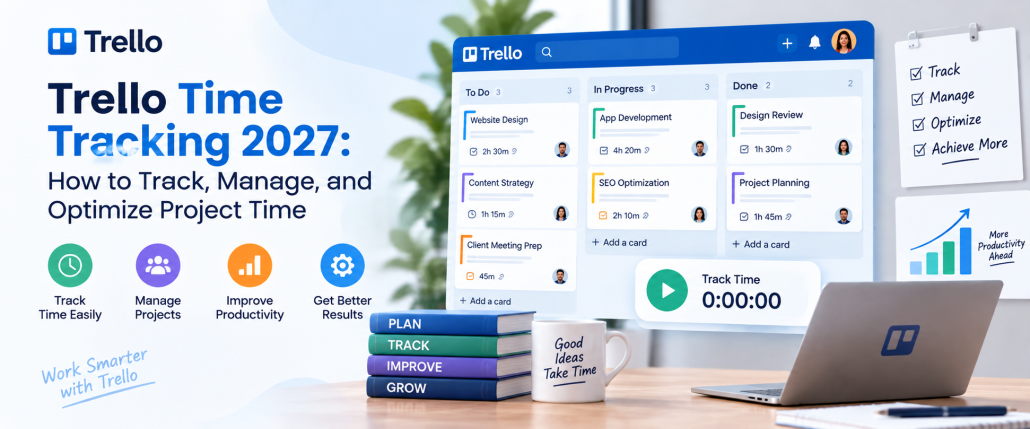
Trello Time Tracking 2027: How to Track, Manage, and Optimize Project Time
Trello makes project work easy to visualize. Teams can organize projects into boards, divide work into lists, create individual cards, assign responsibilities, set deadlines, and move tasks through each stage of a workflow. However, knowing what a team is working on does not automatically tell managers how much time that work requires. That is where Trello time tracking software becomes valuable. By connecting time data with individual cards, tasks, projects, and team members, businesses can compare estimates with actual hours, understand workload distribution, improve project planning, calculate billable time, and identify work that consistently takes longer than expected.
Using time tracking software with Trello helps teams monitor working hours, track task progress, generate accurate timesheets, and improve productivity without changing their existing project management workflows. Trello’s ecosystem supports Power-Ups and integrations that add capabilities to boards, including third-party time tracking tools. Its integration directory includes options such as TimeCamp, Timeneye, TMetric, and Toggl, while providers such as Harvest and Everhour also offer dedicated Trello integrations. These tools help businesses combine visual task management with accurate time tracking for better project planning, resource allocation, and team performance.
What Is Trello Time Tracking and How Does It Work?
Trello time tracking is the process of connecting working hours with Trello cards, tasks, projects, or team members. Instead of seeing only whether a card is in “To Do,” “In Progress,” or “Done,” teams can also understand how long the work actually required. Trello itself is primarily a work-management and visual collaboration platform. Dedicated tracking is generally added through Power-Ups, integrations, browser extensions, or separate time-tracking platforms connected to the team’s workflow. Trello officially describes Power-Ups and integrations as ways to bring additional features and external services into boards.
A typical setup can include:
- Time estimates: The expected number of hours required for a card or task.
- Actual tracked time: The time employees actually spend completing the work.
- Timers: Start-and-stop tracking while someone is actively working.
- Manual entries: Add hours later when live tracking was not possible.
- Billable status: Separate client-billable hours from internal work.
- Timesheets: Combine individual entries into daily, weekly, or project records.
- Reports: Analyze time by employee, project, task, client, or date.
When those elements are connected, a Trello board becomes more useful for planning because managers can evaluate both task progress and the effort behind that progress.
Why Is Trello Time Tracking Important for Project Productivity?
A card moving into “Done” confirms that work was completed, but it says little about the resources required to complete it. A task estimated at two hours may require six. Another task estimated at a full day may routinely take less than three hours. Without actual time data, those differences can remain invisible. Effective time tracking helps teams create a clearer connection between workload and results. Managers can identify tasks that repeatedly exceed estimates, projects that consume too many hours, team members carrying excessive workloads, and processes that create unnecessary delays.
Time records can also support:
- More realistic project deadlines
- Better workload allocation
- Improved project budgeting
- More accurate client billing
- Identification of recurring bottlenecks
- Comparison of planned and actual effort
- Improved future project estimates
- Visibility into billable and non-billable activities
This does not mean every minute should be used to judge individual employee performance. Time data is most useful when it helps managers understand the work system – where estimates are inaccurate, where processes slow down, and where teams need additional resources. Competitor approaches reinforce this broader use of time data. Everhour connects tracking with workloads, estimates, budgets and billing, while Simple Attendance emphasizes moving beyond basic timers toward reporting and operational records. Also Suggest this: Time Management Techniques
How to Track Project Time in Trello – Step by Step
A reliable time tracker for Trello works best when time tracking is built into the same project process the team already follows. Adding a timer without establishing consistent task structure and reporting rules usually produces incomplete data.
Step 1: Create a Trello Board for Your Project
Start with a dedicated board or clearly organized project structure.
Lists can represent workflow stages such as:
Backlog → To Do → In Progress → Review → Done
Keeping stages clear makes it easier to connect time entries with actual progress.
Step 2: Add Tasks and Assign Team Members
Create individual cards for work that can realistically be assigned, estimated, completed, and reviewed.
Avoid cards such as “Website Project” that could contain weeks of unrelated work. Break larger deliverables into trackable tasks such as homepage design, mobile testing, technical SEO review, or product-page copy.
Assign an owner so responsibility for both the work and associated tracking is clear.
Step 3: Set Estimated Time for Each Task
Add an estimate before the task begins.
For example: Homepage wireframe – Estimated: 4 hours
Once the work is finished, you may discover that the actual total was 6.5 hours.
That difference becomes valuable planning information. Custom Fields can also be used for structured values such as Estimated Hours, Actual Hours, Billable Status, or Approval Status. Manual fields do not replace a complete timesheet system, but they can provide a straightforward estimate-versus-actual workflow.
Step 4: Choose a Trello Time Tracking Method
Decide how everyone will record their hours before the project starts. Possible methods include card comments, Custom Fields, a Power-Up, or an external time tracker for Trello. For very small teams testing a workflow, manual entry may be enough. Agencies, consultants, and larger teams may need timers, timesheets, approvals, budget controls, reports, or billing functions.
Step 5: Start Tracking Time When Work Begins
When someone begins a task, they should start the timer or record the starting session according to the team’s agreed process. Several current tools place timer controls directly into Trello workflows. Clockify, for example, can add a timer button to Trello cards through its browser extension, while Harvest offers a Trello Power-Up with card-level timers. TimeCamp offers both Trello integration and Power-Up functionality.
Step 6: Record and Review Actual Hours
Once the task is completed, verify the recorded time before moving the card permanently into Done.
Managers should look for:
- Missing entries
- Duplicate entries
- Incorrect projects
- Incorrect billable status
- Unusually long sessions
- Unapproved manual changes
This review is especially important when time records are later used for invoices, payroll, profitability calculations, or client reports.
Step 7: Compare Estimated and Actual Time
Compare what the team expected with what actually happened. If a task was estimated at four hours but required seven, determine why. The estimate may have been unrealistic. Requirements may have changed. The employee may have encountered technical blockers. The approval process may have caused delays. The objective is not simply to label the task “over budget.” It is to understand the reason behind the difference.
Step 8: Use Time Data to Improve Future Projects
Historical data becomes more valuable with every completed project. Instead of estimating the next website migration from memory, a team can review five previous migrations. Instead of guessing how long content production takes, managers can examine actual hours across research, writing, editing, uploading, and revisions.
This creates a feedback loop:
Estimate → Track → Compare → Learn → Improve the next estimate
That is where time tracking starts improving project productivity rather than merely recording hours.
Best Time Tracking for Trello: Features to Look For
The best time tracking for Trello depends on the way your organization works. A freelancer may only need a straightforward timer. A client-service agency may require budgets, billable rates, approvals, detailed reports, and invoices. Before choosing a tool, evaluate these areas:
| Feature | Why It Matters |
| Card-level timer | Allows users to track without leaving the task |
| Manual time entry | Covers meetings, calls, travel, and forgotten timers |
| Estimates | Helps compare planned effort with actual effort |
| Timesheets | Creates reviewable daily or weekly records |
| Billable hours | Separates client work from internal activities |
| Reports | Reveals where project and team time is going |
| Approval workflow | Helps managers verify entries before billing or payroll |
| Browser integration | Makes tracking available inside the existing workflow |
| Mobile/desktop support | Helps teams track work in different environments |
| Export options | Useful for clients, finance, payroll, or additional analysis |
| Budget controls | Helps identify scope creep before projects become unprofitable |
| Multi-project reporting | Important for agencies and larger teams |
Ease of use deserves particular attention. An advanced system provides little value if employees regularly forget to use it.
Best Time Tracker for Trello in 2027
There is no universal best time tracker for Trello. The better choice depends on whether your priority is simplicity, free tracking, detailed reporting, client billing, project budgeting, or team-wide time management.
1. Everhour
Everhour provides Trello-specific tracking options and promotes both a Trello Power-Up and broader Trello integration. Its Trello workflow can support timers, task estimates, reporting, budgets, billing, and related project-time management functions. It can be particularly relevant for agencies and professional-service teams that need more than a basic stopwatch.
2. Clockify
Clockify’s Trello integration uses its browser extension to add a timer button to Trello cards. Card names can become time-entry descriptions, users can enter time manually, and tracked data can later be reviewed through reports and timesheets in Clockify. Its free offering makes it worth considering for teams looking for a free time tracker for Trello before moving into more advanced paid functionality.
3. Toggl Track
Toggl Track supports Trello through its browser-extension ecosystem. Its current browser-extension documentation lists Trello among supported integrations, enabling users to bring time tracking closer to their task workflow. Teams evaluating Toggl should confirm the exact setup they intend to use because Toggl also maintains older Trello integration pages marked as legacy.
4. TimeCamp
TimeCamp has a dedicated Trello integration that can import Trello structures and allow users to track time against Trello work. It also provides a Trello Power-Up for starting and stopping timers from cards and viewing tracked-time history. This can work well for teams that want project structure synchronization alongside reporting.
5. Harvest
Harvest provides an official Trello Power-Up that allows users to start timers from Trello cards, enter existing time manually, and attach simple time reports to cards. Tracked entries are also available inside Harvest. Harvest can be particularly relevant to service businesses that connect time tracking with client work and billing.
6. TMetric
TMetric’s Trello setup uses its browser extension to place tracking controls into Trello cards. Its current Trello integration page also highlights timesheets, billable hours, reporting, multi-board visibility, and payroll or invoicing use cases. It is worth evaluating when teams want tracking plus structured reporting beyond individual cards.
7. Timeneye
Trello’s own analytics and reporting integration directory currently lists Timeneye as a way to track time in Trello. Because integration products can evolve, teams considering Timeneye should verify its current Trello setup and plan availability before implementation.
Trello Free Time Tracking vs Paid Time Tracking Tools
Trello free time tracking can be sufficient when a team primarily needs to understand how long tasks take. Paid software becomes more useful when those hours need to support additional business processes.
| Requirement | Free Tracking May Be Enough | Paid Tools Become Useful |
| Basic timer | Yes | Yes |
| Manual entries | Usually | Yes |
| Small team tracking | Often | Yes |
| Advanced approvals | Limited | Usually stronger |
| Project budgets | Limited | Often available |
| Client billing | Basic or limited | More comprehensive |
| Advanced reports | Limited | Usually stronger |
| Workload analysis | Basic | More detailed |
| Payroll workflows | Limited | Better suited |
| Multi-project management | May become difficult | Usually stronger |
| Detailed profitability | Limited | Often available |
Start by defining the decision the data needs to support. If you only want to know, “How much time did we spend on this project?” a free option may be enough. If you need to answer, “Was this client profitable, which employee hours are approved, what should we invoice, and which projects are exceeding budget?” more advanced functionality may justify a paid solution.
How to Standardize Trello Time Tracking Across Your Team
A Trello tracking system becomes useful only when everyone follows the same rules. A team with five different tracking habits will produce five different versions of the truth.
1. Define One Time Tracking Process
Decide whether employees should use a Power-Up, browser extension, manual field, or external tracker. Avoid allowing everyone to choose a different method unless your reporting system can reliably combine the results.
2. Set Clear Task and Project Naming Rules
Names should be understandable without extra explanation. Instead of:
Design use: Client A – Landing Page – Mobile Design
Consistent naming makes reports easier to filter, review, and export.
3. Establish Time Entry Guidelines
Define what should and should not be tracked. For example, decide whether meetings, internal communication, training, research, revisions, travel, or administrative work should have separate categories.
4. Decide When Time Entries Should Be Reviewed
Daily recording is generally more reliable than reconstructing an entire week from memory. Set a deadline for correcting missing entries and establish who approves the records.
5. Standardize Reports Across Projects
Use the same reporting structure whenever possible.
A weekly report might contain:
Project | Task | Team Member | Tracked Hours | Billable Hours | Estimated Hours | Actual Hours
Managers can then compare projects without having to interpret a different reporting format every time.
6. Review the Tracking Process Regularly
Tracking systems should evolve with the organization. If employees constantly forget a specific field, determine whether that field is necessary. If managers never use one of the reports, stop creating it. The goal is useful data, not additional administration.
How to Automate Trello Time Tracking
Automation can reduce the number of times employees have to remember a separate administrative action. Trello’s automation system allows teams to create rules based on triggers and actions. For example, an event on a card can trigger assignment, movement, due-date changes, comments, or other automated steps. Automation should support the tracking process rather than replace it.
1. Automate Time Tracking Reminders
A rule can remind the assignee to start or verify tracking when a card reaches a particular workflow stage.
For example:
Card moves to In Progress → Add reminder to begin tracking.
2. Use Card Status Changes as Workflow Triggers
Board movement can represent important project events.
To Do → In Progress can signal work beginning.
In Progress → Review can signal that logged hours should be checked.
Review → Done can trigger a final verification.
This approach mirrors a practical pattern discussed in Simple Attendance’s competitor guide, where automation is used to enforce time-entry habits rather than attempting to replace the tracker itself.
3. Automate Missing Time Entry Notifications
Teams can build processes that flag incomplete records before the end of the reporting period. The objective is to catch missing information while the task is still recent, not days later when employees have to reconstruct their activity.
4. Connect Time Tracking With Project Reports
Automation can also help move data into downstream workflows. Some tracking systems integrate with automation platforms to connect Trello events with project or time-tracking records. Clockify, for example, documents workflows where Trello board or card events can trigger Clockify-related actions through automation services.
Common Trello Time Tracking Mistakes to Avoid
Even a well-planned Trello time tracking setup can produce poor results if teams follow inconsistent habits. Clear tracking rules, regular reviews, and accurate task structures help keep time data useful.
1. Recording Time at the End of the Week: Entering hours several days later often leads to forgotten work, rounded estimates, and missing entries. Tracking time daily helps teams maintain more accurate and reliable project records.
2. Tracking Time Without Clear Tasks: Broad cards such as “Marketing” or “Website Work” make time reports less useful. Break projects into specific tasks so managers can clearly understand where team hours are being spent.
3. Using Too Many Tracking Tools: Using several timers, spreadsheets, and manual tracking methods can create inconsistent data. Standardizing one time tracking process makes reports easier to review, compare, and manage.
4. Ignoring Estimated vs Actual Time: Actual hours show how long work took, while estimates provide a benchmark for planning. Comparing both helps teams identify inaccurate forecasts and create better project timelines.
5. Tracking Employees Instead of Project Outcomes: Time tracking should support project decisions rather than unnecessary monitoring. Focus on workloads, delays, profitability, budgets, and process improvements instead of employee activity alone.
6. Collecting Time Data Without Reviewing It: Time records provide little value when teams never analyze them. Regular report reviews help identify budget issues, inaccurate estimates, workload problems, and opportunities to improve workflows.
What Is the Best Project and Task Management Software for Growing Teams in the US?
The best project and task management software depends on how a growing team operates. Some teams want visual Kanban boards. Others need deeper time tracking, scheduling, workload management, reporting, and workforce controls. Growing US teams should compare platforms based on their actual workflows rather than simply choosing the product with the longest feature list.
Important factors include:
Projects and tasks | Time tracking | Scheduling | Collaboration | Reporting | Automation | Workload visibility | Scalability | Billing | Ease of adoption
1.AYYES
AYYES combines project and task management with multiple time-tracking methods. Its current feature set includes projects, unlimited tasks, task assignments, web timers, desktop-based automated tracking, manual time entry, timesheets, reports, dashboards, scheduling, approvals, invoicing, and related team-management functions. Projects can contain tasks and task groups, team members can be assigned work, and hours can be tracked directly against projects and tasks. AYYES also provides detailed and summarized timesheets with grouping and filtering by project, employee, and date.
Best For: Small businesses, agencies, consultants, project-based teams, remote teams, growing businesses
Key Features: Project management, unlimited tasks, task assignments, web timer, automated desktop tracking, manual time entry, timesheets, reports, dashboards, scheduling, approvals, invoicing
Pricing: AYYES supports up to 12 team members on its free plan. Paid plans start at $0.88 per user/month with annual billing or $0.99 per user/month with monthly billing. Screenshot tracking and activity/app monitoring are paid features and are not included on the Free plan.
2. Trello
Trello remains particularly useful for teams that prefer straightforward visual workflows based around boards, lists, and cards. Its Power-Up and integration ecosystem lets organizations add capabilities that are not part of their basic board workflow, including external time tracking and reporting services.
Best For: Small teams, visual planners, Kanban-based workflows, simple project tracking
Key Features: Boards, lists, cards, checklists, due dates, labels, Power-Ups, workflow automation, team collaboration
3. Asana
Asana is suitable for teams that want structured projects, tasks, dependencies, workflow management, collaboration, and broader planning capabilities. It may appeal to growing organizations that need more project structure than a simple Kanban board while still keeping day-to-day task management accessible.
Best For: Growing teams, marketing teams, operations teams, cross-functional projects, structured workflows
Key Features: Projects, tasks, subtasks, dependencies, timelines, workflow management, team collaboration, project views
4. ClickUp
ClickUp is designed as a broad work-management environment combining tasks, projects, views, documentation, automation, dashboards, and other productivity functionality. It may suit teams that prefer keeping a large portion of their work management within one customizable platform.
Best For: Growing teams, agencies, operations teams, customizable workspaces, multi-project environments
Key Features: Tasks, projects, multiple views, documents, dashboards, automation, custom fields, team collaboration
5. Monday.com
Monday.com offers configurable workflows for managing projects, tasks, operations, and collaborative work. Its visual approach can work well for organizations that want flexible boards while also building more structured business workflows as they grow.
Best For: Operations teams, growing businesses, cross-functional teams, visual workflow management
Key Features: Boards, task management, workflow customization, automation, dashboards, project views, team collaboration There is no single winner for every organization. Teams should test their real workflows including reporting, time capture, project setup, approvals, and daily employee use – before selecting a platform.
Looking for an Alternative to Trello for Time Tracking and Project Management?
Teams sometimes reach a point where maintaining a project-management platform plus separate time trackers, reports, scheduling systems, and billing workflows creates more administration than value. In that situation, AYYES is one option to evaluate as an all-in-one alternative rather than as a Trello time-tracking integration.
AYYES currently supports project and task management alongside web timers, automated desktop tracking, manual entries, project-based tracking, timesheets, reporting, scheduling, approvals, and invoicing. Its project workspace allows teams to organize tasks, assign members, set priorities and statuses, and record project hours without requiring a separate Trello board. Its reporting tools can group data by team member, project, and date, while reports can be exported to PDF or Excel.
AYYES can therefore make sense for teams whose requirement has shifted from: “We need a timer inside Trello.” to: “We need projects, tasks, tracked hours, timesheets, reports, scheduling, and team management in one work system.” That distinction is important. AYYES should not be presented as a verified Trello Power-Up unless such an integration becomes available. It is better evaluated as a separate project and time-management platform.
Trello Time Tracking Best Practices for Teams in 2027
The best time tracking for Trello should be accurate, simple, and easy for teams to follow. Clear rules, consistent tracking habits, regular reviews, and responsible use of data help improve project planning and productivity.
1. Keep Time Tracking Simple: Avoid unnecessary fields and complicated steps that make tracking harder. A simple process improves adoption, reduces missing entries, and helps teams maintain more accurate time records.
2. Track Time Against Specific Tasks: Record hours against clear tasks instead of broad project categories. Task-level tracking helps managers understand where time is spent and identify work that regularly requires extra effort.
3. Establish Clear Billable and Non-Billable Rules: Define which activities count as billable before tracking begins. Clear rules for meetings, research, revisions, travel, and administration reduce confusion and improve billing accuracy.
4. Review Reports Every Week: Weekly reviews help teams catch missing entries, unusual hours, workload imbalances, and budget issues early. Regular reporting also keeps project data accurate and easier to manage.
5. Respect Employee Privacy: Explain what time data is collected, why it is needed, and who can access it. Use tracking to improve projects and workloads rather than creating unnecessary employee surveillance.
6. Use Time Data to Improve Planning: Turn tracking data into better decisions by reviewing recurring delays, inaccurate estimates, and workload problems. Use these insights to improve future budgets, timelines, and staffing plans.
Final Thoughts on Trello Time Tracking
Trello provides a flexible visual environment for organizing projects, but time data adds another layer of insight. By connecting tasks with actual working hours, teams can improve estimates, understand project costs, identify bottlenecks, manage workloads, and create more reliable client or management reports. The right approach depends on complexity. Small teams may be comfortable with simple manual fields or lightweight integrations.
Agencies and growing organizations may prefer dedicated tools that provide timers, billable hours, approvals, budgets, and detailed reporting. As operations become more complex, teams should also consider whether maintaining multiple integrations still makes sense or whether an all-in-one project and time-management platform would create a cleaner workflow. The objective is not to track more data. It is to collect the right time data and use it to make projects easier to plan, manage, and improve.
Frequently Asked Questions About Trello Time Tracking
1. What Is the Best Time Tracker for Trello?
The best option depends on your workflow. Current Trello-compatible choices include tools such as Everhour, Clockify, TimeCamp, Harvest, TMetric, Timeneye, and Toggl’s browser-extension workflow. Compare timers, reports, estimates, approvals, billing, integrations, and pricing before choosing.
2. Is There a Free Time Tracker for Trello?
Yes. Some time-tracking providers offer free plans or free tracking options that can work with Trello. Clockify, for example, currently provides Trello tracking through its browser extension and promotes a free account option. Always check current plan limits before adopting a tool for an entire team.
3. Can Trello Track Time Automatically?
Trello’s core boards do not function as a dedicated automatic time-tracking system. Teams generally add tracking through third-party integrations, Power-Ups, or browser extensions. Some connected platforms can provide automatic or timer-based tracking depending on the tool and setup.
4. How Do I Track Employee Hours in Trello?
Create clearly assigned cards, choose one tracking method for the whole team, record hours against individual tasks, and review the resulting entries regularly. For larger teams, use a connected tracker with timesheets, reporting, approvals, and export functionality rather than relying solely on manual comments.
5. Can I Track Estimated vs Actual Time in Trello
Yes. Teams can record estimates with structured fields and compare those values with time captured manually or through a connected tracker. Tools such as Planyway also document estimate-versus-actual workflows for Trello-based project planning.
6. Can Trello Time Tracking Be Used for Client Billing
Yes, when Trello is connected to a time-tracking platform that supports billable hours, reporting, or invoicing workflows. Harvest, Everhour, TMetric, and other tracking platforms provide functions designed to connect recorded project time with billing-related processes.
7. Is Trello Good for Growing Teams
Trello can work well for growing teams that value visual boards, flexible workflows, collaboration, and an extensive Power-Up ecosystem. However, teams requiring advanced workforce management, complex reporting, scheduling, approvals, or deeper project controls should compare Trello plus integrations with more integrated work-management platforms before scaling the same setup indefinitely.